Every email you send tells people something about you. Your name, your role, how to reach you — all of this matters. A signature handles this automatically, and Gmail makes it surprisingly easy to set up.
But here’s the thing: a signature shouldn’t just be plain text with your contact details. It can look professional, include your branding, and even have that personal touch that makes your emails stand out. If you’re looking for something more distinctive, a calligraphy signature generator can help you create a handwritten-style signature that adds elegance to every message you send.
Let me walk you through the whole process. It takes about five minutes, and once it’s done, you won’t have to think about it again.
Table of Contents
Start by Accessing Gmail Settings
First things first — you need to get into the right place. Gmail hides most of its powerful features behind a settings menu, and signatures are no exception.
Open Your Gmail Inbox
Head to gmail.com and log into your account. You probably do this every day, so this part’s straightforward. Just make sure you’re logged into the correct account if you manage multiple email addresses.
Once you’re in, you’ll see your inbox with all your emails. The settings we need aren’t visible right away — Gmail keeps its interface clean by tucking away advanced options.
Find the Settings Icon
Look at the top-right corner of your screen. You’ll see a gear icon sitting next to your profile picture. That’s your gateway to all Gmail settings.
Click on it. A dropdown menu will appear with quick settings — things like display density, theme, and a few other options. But we need to go deeper.
Select ‘See All Settings’
At the top of that dropdown menu, you’ll see “See all settings.” Click it.
This opens the full settings page where Gmail keeps all its configuration options. You’ll land on the “General” tab by default, which is exactly where we need to be. If you accidentally click away, just hit that gear icon again and select “See all settings” to get back.
Create a New Signature
Click the ‘Create New’ Button
Hit that “+ Create new” button. A small popup window will appear asking you to name your signature. Why does Gmail want you to name it? Because you can create multiple signatures for different purposes. One for professional emails, another for casual correspondence, maybe a third for specific projects. Having names helps you keep them organized.Enter a Signature Name
Type in something that makes sense to you. “Work,” “Professional,” “Main,” or even your actual name — whatever helps you remember what this signature is for. If you only plan to have one signature, just call it “Main” or “Default.” Keep it simple.Click ‘Create’ Again
Once you’ve entered the name, click the “Create” button in that popup. The window will close, and suddenly you’ll see a text editor appear in the signature section. This is your workspace. Everything you create here will automatically attach to your emails according to the rules you set up later.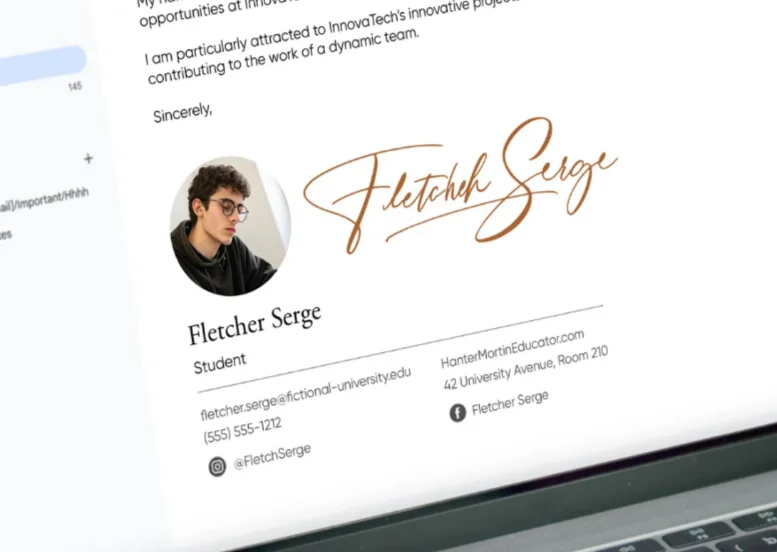
Navigate to the Signature Section
Scroll Down the Page
Start scrolling. You’ll pass through sections about language, conversation view, and images. Keep going. The signature section isn’t at the top — Gmail buries it a bit down the page. Don’t rush this part. If you scroll too fast, you might miss it.Locate the ‘Signature’ Section
You’ll know you’ve found it when you see a section labeled “Signature” in bold. It’s usually about halfway down the General settings page. Right now, if you’ve never set up a signature before, you’ll see either a default setting that says “No signature” or possibly a basic signature if you’re using a work or school account that came with one pre-configured. Below this, there’s a “+ Create new” button. That’s what we’re after next.- Say goodbye to messy scribbles
- Get a sleek, confident signature in days
Configure Your Signature Content
This is where your signature comes to life. The editor Gmail provides is more powerful than it looks at first glance.
Use the Editor to Build Your Signature
You’ve got a blank canvas now. The formatting toolbar above the text box gives you options: fonts, sizes, bold, italic, alignment, links, and images.
Start simple. Don’t try to get fancy right away. Type out your basic information first, then we’ll make it look good.
The editor works like a mini word processor. You can type, delete, copy, paste — all the usual stuff. But unlike a word processor, you need to think about how this will look in an email, which means keeping it compact and readable.
Add Your Name, Title, and Contact Information
Begin with your full name on the first line. This is what people will see first, so make it clear.
Hit Enter and add your job title on the next line. “Marketing Manager,” “Software Developer,” “CEO” — whatever your role is.
Then add your contact details. Phone number, email address (yes, even though they’re already emailing you — people forward messages), and maybe your LinkedIn profile if that’s relevant to your work.
Here’s a basic structure that works:
- Your Name
- Your Job Title
- Company Name
- Phone: (123) 456-7890
- Email: your.email@company.com
Keep each piece of information on its own line. This makes it scannable. People should be able to grab your phone number at a glance without hunting through a paragraph of text.
Insert Your Company Logo
Want to add some visual branding? Click the image icon in the formatting toolbar. You’ll get two options: upload an image or link to one online.
If your company logo is stored online (on your company website, for example), you can link directly to it. Otherwise, upload it from your computer.
Here’s a tip: resize your logo before uploading. Email signatures aren’t billboards. A logo that’s 200-300 pixels wide is plenty. Anything larger will overwhelm your signature and make it look unprofessional.
Once you’ve inserted the image, you can click on it and drag the corners to resize it within Gmail. Position it where it makes sense — usually at the top or bottom of your signature.
Some people put their photo instead of a logo. That’s fine too, especially if you’re freelancing or running your own business. Just make sure it’s a professional headshot, not a vacation selfie.
Format Your Signature Text
Now let’s make it look polished. Highlight your name and bump up the font size a bit — maybe 14pt while keeping the rest at 10pt or 11pt.
You might want to make your name bold. Some people prefer it; others don’t. Try both and see what feels right.
Consider using different colors sparingly. Maybe your company name appears in your brand color, or your links are a specific shade of blue. But don’t go overboard — this isn’t a rainbow.
Alignment matters too. Most signatures look best left-aligned, but if your design calls for centered text, that’s an option. Just make sure it’s readable on mobile devices — many people check email on their phones, and centered text can look weird on small screens.
Want to add social media icons? You can insert small images that link to your profiles. Click the image icon, upload your social icons, then click on each one, hit the link button in the toolbar, and paste in your profile URL.
Remember: less is more. A signature stuffed with information and graphics looks cluttered. Pick the essentials and leave out the rest.

“Ge-Sign created my Gmail signature, and it instantly looked professional and readable on both my phone and desktop.”
Merry D., Photographer
Set Signature Usage Parameters
You’ve built your signature, but Gmail doesn’t know when to use it yet. Let’s tell it.
Choose Which New Emails Get Your Signature
Right below the signature editor, you’ll see a dropdown menu labeled “For new emails use.” Click it.
You’ll see a list of all your signatures (right now, probably just the one you created). Select it.
This tells Gmail: “Whenever I compose a new email from scratch, automatically put this signature at the bottom.”
If you have multiple signatures set up, you can choose which one should be your default for new messages. You can always switch to a different signature manually when composing, but this sets your go-to option.
Decide Whether Replies Get Your Signature
There’s another dropdown right below that one: “On reply/forward use.”
This is a judgment call. Some people want their full signature on every single message, including replies. Others think it’s overkill — when you’re in the middle of a conversation thread, do you really need your full contact details appearing every time?
You’ve got three options here:
- Select your signature name to include it in all replies and forwards
- Choose “No signature” if you only want it on new emails
- Or pick a simplified signature if you’ve created one specifically for replies
My take? For professional correspondence, include it in the first reply but consider whether it needs to be on every back-and-forth message. If you’re going back and forth five times in one day with the same person, they don’t need to see your phone number five times.
But Gmail doesn’t have an “only on the first reply” option, so you’ll have to choose all or nothing.
Save Your Changes and Test the Signature
Almost done. But there’s one crucial step left — actually saving what you’ve created.
Scroll to the Bottom of the Page
Here’s where people mess up. They create this beautiful signature, close the settings tab, and wonder why it’s not showing up in their emails.
You have to save your changes.
Scroll all the way down the settings page. Past the signature section, past all the other settings you didn’t touch. Keep going until you can’t scroll anymore.
Click ‘Save Changes’
At the very bottom of the settings page, you’ll see a button that says “Save Changes.” It’s usually orange and hard to miss — once you finally get down there.
Click it. Gmail will save everything and refresh the page. You’ll see a confirmation message at the top saying your changes have been saved.
Don’t skip this step. If you close the settings without saving, everything you just did disappears.
Test Your Signature in a New Email
Now for the moment of truth. Click “Compose” to start a new email.
Scroll down past the blank body of the message. Your signature should appear automatically at the bottom. If it does — congratulations, you’ve successfully set up your Gmail signature.
If it doesn’t appear, go back to settings and check two things:
- Did you actually click “Save Changes”?
- Did you select your signature in the “For new emails use” dropdown?
These are the two most common reasons signatures don’t show up.
Once you see your signature in that new email, send yourself a test message. Check how it looks when you receive it. Does the formatting hold up? Are your links working? Does your logo display correctly?
If something looks off, head back to settings and adjust. You can edit your signature anytime by clicking on its name in the signature section, making your changes, and saving again.
One more thing to check: compose an email on your phone. Mobile Gmail apps display signatures, but sometimes the formatting gets squeezed or rearranged on smaller screens. If your signature looks weird on mobile, you might need to simplify it or adjust image sizes.
That’s it. Your signature is now working automatically on every email. You don’t have to think about it anymore — it’s just there, making your emails look more professional and giving people an easy way to reach you.
If you ever want to change it, just head back to that gear icon, click “See all settings,” scroll down to the signature section, and edit away. You can update your job title when you get promoted, change your phone number if you move, or completely redesign your signature whenever you feel like it.
And if you want something more personal than plain text — something that feels like you actually signed the email yourself — remember that a calligraphy-style signature can make your messages stand out. It’s a small touch, but sometimes small touches make the biggest difference.
Written by the Ge-Sign Editorial Team.